Favorites & Pinning: Keep Your Best Clips Always Accessible
50 go-to clips in a library of 10,000. Star them. Pin them to top. They stay visible while you sort and cull the rest — use locking to prevent accidental deletion.
Your All-Time Favorites Deserve Their Own Shortcut
You have 10,000 videos. Maybe 50 of them are the ones you come back to constantly. The clips you always want on hand. The reference footage. The best takes.
Without a favorites system, you search for them every time. With it, they're one click away no matter what else is on screen.
The Star System
Starring a Video
Hover over any video. Click the star icon. The video is added to your Favorites collection.
Or: Right-click → “Add to Favorites.” Keyboard shortcut: F while a video is selected.
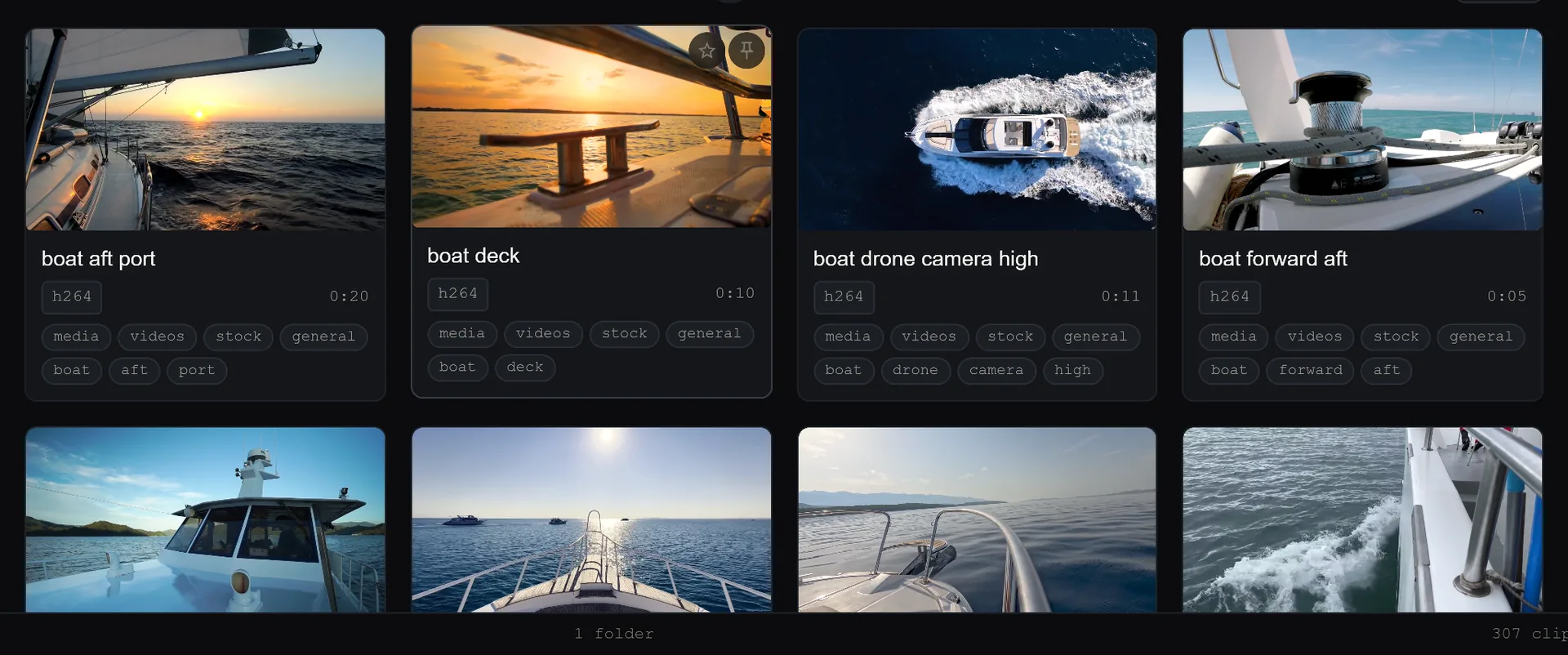
Viewing Your Favorites
Click “Favorites” in the sidebar. Every starred video appears, sorted by when you starred it (or by any other field you choose).
Your favorites list persists across sessions. Close the app, reopen it, they're still there.
Starring Across Sessions
Stars are stored locally alongside your custom tags. They're not tied to a folder path — they're tied to the file. Move the file, refresh, star updates automatically.
Pinning to Top
Starring saves a video to your Favorites. Pinning does something different: it locks a video to the top of whatever view you're in.
Sort by newest, largest, or longest — pinned videos stay at the top regardless. They anchor your view while everything else sorts around them.
Right-click any video → “Pin to Top.” Pin multiple videos to create a fixed shortlist at the top of any category or search result.
Locking Against Accidental Deletion
Favoriting and pinning are about access. Locking is about protection.
Lock a video and SiftVid will warn you before any action that could remove or move it: bulk delete, folder cleanup, or manual deletion. You have to explicitly confirm twice to delete a locked file.
Right-click → “Lock.” A small lock badge appears on the thumbnail. Unlock the same way.
Combining All Three
The most useful pattern: star your essential reference clips, pin the ones you're actively working with, lock the originals you can never replace.
- Starred: always in your Favorites sidebar, one click away
- Pinned: visible at the top of any view you're working in
- Locked: protected against accidental deletion no matter what
Wedding Videographer Example
Star all ceremony wide shots. Pin the best angle from the current project. Lock every original that a client might request for re-editing.
Sports Coach Example
Star all highlight clips. Pin this week's review footage at the top of the game-film category. Lock the originals from last season.
Your best clips should be one click away, not three searches away.
Keep reading
Use Custom Tags to Create Your Perfect System
Auto-tags are great. But your tags are better. Here's how to build a tagging system that fits your workflow — ceremony clips, drone footage, coaching drills, or any category you define.
Rediscover Forgotten Files With Random Discovery
You forgot half your collection exists. The dice button brings it back. Filter first, then randomise — surface footage from years ago with one click.