Your First 5 Minutes: Complete Setup Guide
Download. Install. Select folder. Done. Here's exactly what to do when you first open the app.
From Download to Watching in 5 Minutes
You just downloaded the app. Now what? Here's your complete setup guide. Follow these steps and you'll be searching your library in 5 minutes.
Step 1: Download the App (1 minute)
Go to the download page and grab the Windows installer (.exe). SiftVid runs on Windows 10 and 11, and the 7-day full-access free trial starts the first time you open it — no credit card, nothing held back.
Step 2: Install (1 minute)
Run the .exe. Click “Install.” Done. No complex configuration. No server setup. No database installs.
Step 3: First Launch (10 seconds)
Open the app. You'll see the welcome screen. It asks one question: “Where are your videos?”
Step 4: Select Your Video Folder (30 seconds)
Click “Select Folder.” Navigate to where your videos are.
- Option 1: Single folder with all videos
- Option 2: Parent folder with subfolders (we scan everything)
- Option 3: Multiple folders across different drives (add them one by one)
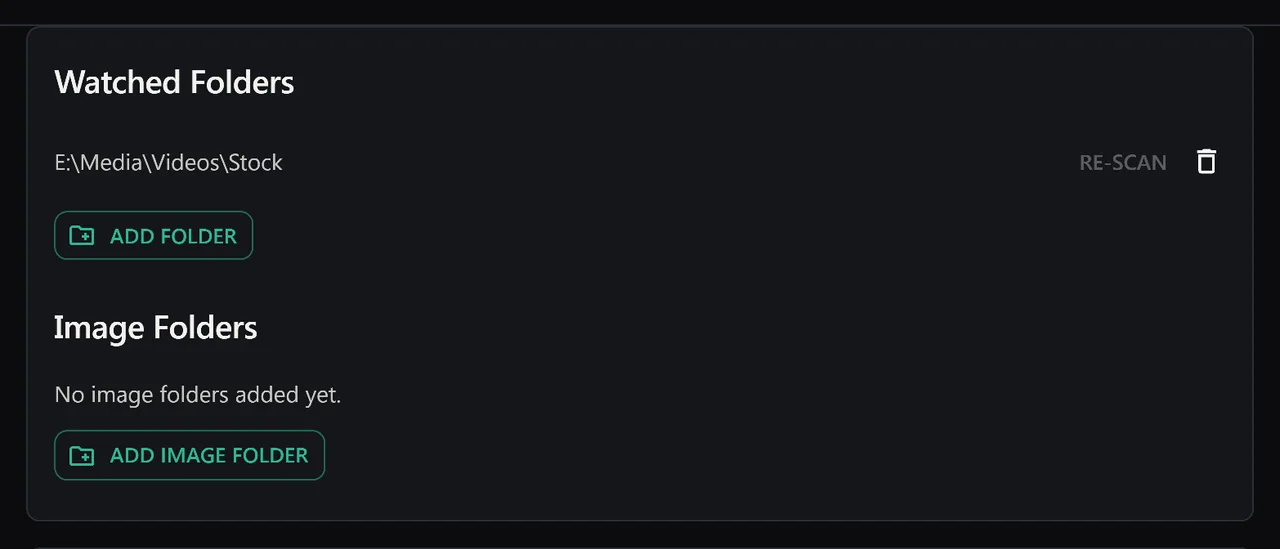
Step 5: SiftVid Scans Your Library (instant to 5 seconds)
The app reads every filename and extracts tags, categories, and metadata. Processing time:
- 100 videos: instant (under 0.1 s)
- 1,000 videos: under 1 s
- 10,000 videos: 3 s
- Larger libraries: seconds, not minutes
You don't tag anything. You don't configure anything. It's automatic.
Step 6: Start Searching (2 minutes)
Type any word from your filenames in the search bar. See all matching clips. Click one. Watch it.
Click “Categories” in the sidebar, pick any category, and see all videos in it instantly.
Troubleshooting
“No Videos Found”
- Did you select the right folder? Check Settings → Folders.
- Are your videos MP4 files? MP4 is the format SiftVid plays; convert other formats first (VLC or HandBrake do this well).
- Do you have read permissions on that folder?
“App Won't Open”
- If SmartScreen shows “Windows protected your PC”, click More info → Run anyway. The download page publishes the installer's SHA-256 so you can verify what you run.
- Still stuck? Right-click the .exe → “Run as Administrator”.
Filenames Are Gibberish
Some files have names like 5d733c4f89b3.mp4. Nothing to extract. Use custom tags: right-click the video, add your own tags, and it becomes searchable.
Download. Install. Select folder. Search. 5 minutes from zero to fully organized.
Keep reading
Use Custom Tags to Create Your Perfect System
Auto-tags are great. But your tags are better. Here's how to build a tagging system that fits your workflow — ceremony clips, drone footage, coaching drills, or any category you define.
Rediscover Forgotten Files With Random Discovery
You forgot half your collection exists. The dice button brings it back. Filter first, then randomise — surface footage from years ago with one click.