Send Cut Lists to Premiere & DaVinci
Export Premiere XML and DaVinci EDL cut lists directly from your SiftVid library. See how to manage complex edits and deliver clean project files.
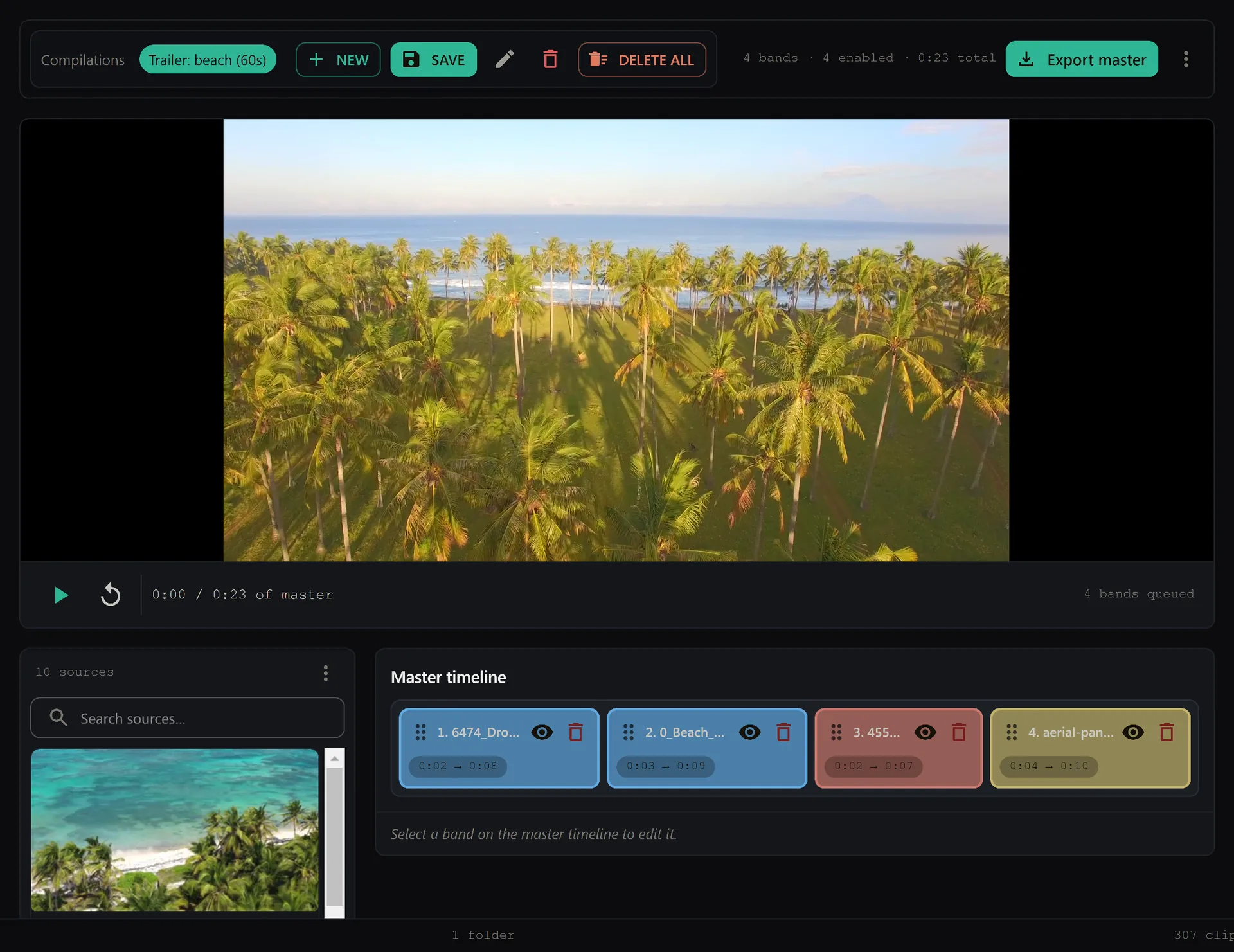
Managing a large personal media library is one thing; extracting specific clips for a professional edit is another. Most local video managers stop at finding the right file. SiftVid goes a step further by bridging the gap between your local archive and professional non-linear editing (NLE) software. If you have curated a project folder or used fuzzy search to identify the exact segments you need, you can export standardized cut lists that open directly in Adobe Premiere Pro or DaVinci Resolve.
This workflow eliminates the manual work of building an EDL or XML file from scratch. You define your selections, and SiftVid generates the project file. Here is how to streamline your post-production handoff.
Why Use XML and EDL Exports
When you hand off a project to an editor, or when you move between machines, you need a format that preserves timecodes, clip order, and duration.
- Premiere Pro uses the XML standard for project exchange. This file contains metadata about the clips and the sequence structure.
- DaVinci Resolve reads XML and also supports legacy EDL (Edit Decision List) files for simple cut sequences.
By generating these files from SiftVid, you ensure that the timecodes match exactly what you saw on your source monitor. You are not guessing at in/out points; you are exporting the exact segments you marked.
Preparing Your Project in SiftVid
Before you can export a cut list, you need to assemble the clips in the order you intend to edit them. SiftVid offers two primary ways to do this, depending on your workflow.
Using Category Theater
If you have already organized your library using smart tags, Category Theater is the fastest way to build a sequence. Create a category that represents your project (e.g., "Wedding - Ceremony Final Cut"). Add clips to this category in the desired sequence, and play the category through once to confirm the order before you export.
Using Fuzzy Search for Ad-Hoc Selections
Sometimes you are not building a project from a pre-existing category but are hunting for specific moments. Use the fuzzy search with AND/OR/NOT operators to find clips. For example, searching tag:landscape AND duration:30s might pull up thirty clips that meet your criteria. You can select these clips and save them to a temporary category or directly use the selection to generate a cut list.
The power here is that SiftVid handles the complex timecode math. If you selected a clip at 00:02:15.00 to 00:02:45.00, the exported XML will reflect those exact in and out points, ensuring no guesswork when you drag the file into your NLE.
Exporting a Premiere Pro XML
To send your project to Premiere Pro, follow these steps:
- Open your project category or selection in SiftVid.
- Navigate to the export options.
- Select Premiere XML as the output format.
- Choose a save location.
Once the .xml file is generated, open Premiere Pro. Go to File > Import… (or simply drag the XML file into the Project panel). Premiere will create a new sequence with all your clips arranged in the order you defined.
Important Note on Media Paths: The XML file references the original file paths on your local machine. If you open the project on a different computer, Premiere will mark the clips as "Offline" because it cannot find the files at the original local paths. To resolve this, you must relink the media. This is a standard NLE behavior and does not affect the integrity of the edit points.
Exporting a DaVinci Resolve EDL or XML
DaVinci Resolve is highly compatible with standard interchange formats. You can export either an EDL for simple cut lists or an XML for more complex project structures.
- Select your clips in the desired order.
- Choose EDL or XML from the export menu.
- Save the file.
To import into DaVinci Resolve, use File > Import > Timeline… for either format. Resolve reads XML and EDL through the same import dialog and will create a new timeline with your clips.
Like Premiere, Resolve will need to locate the media files. If you are working on the same machine where the files reside, Resolve should automatically link the media if your file naming conventions are consistent. If moving to a new machine, you will use the Media Pool > Relink Files function to point to the new location of your video files.
Managing Timecodes and Durations
A common pain point in local video management is that different cameras or recording devices may have different timecode formats (e.g., 29.97 drop frame vs. non-drop). When you export the XML or EDL, the cut points reference the original source files and their in/out points, so the segments you marked in SiftVid are the segments that land on the timeline.
This is critical for multi-camera edits. If you are editing a scene with three cameras, exporting a cut list from SiftVid ensures that the timecodes in your NLE timeline match the source footage, making synchronization easier.
Best Practices for Clean Exports
To get the best results from your cut lists, consider these tips:
- Verify Sequence Order: Always play through your category or selection in SiftVid before exporting. The export reflects the order you see.
- Keep File Paths Consistent: If you plan to move your library to an external drive, ensure the drive letter or mount point remains consistent, or be prepared to relink media in your NLE.
- Use Descriptive Categories: Name your categories clearly (e.g., "2023-10-15 - Client X - Final"). This makes the exported project file easier to identify later.
- Check Export Format: Ensure you are selecting the correct format for your target NLE. Premiere prefers XML; Resolve can handle both XML and EDL.
Getting Started with SiftVid
SiftVid is a desktop application for Windows 10 and 11 designed for local-first video management. It does not require an account, and your videos never leave your machine. You can start managing your library and testing the export workflow with a free trial.
To download the application and see the full list of features, visit the download page or read about all the capabilities on the features page. If you have questions about specific file formats or export behaviors, check the FAQ.
By integrating SiftVid into your workflow, you turn your local video library into a dynamic project management tool. You can find clips, organize them, and hand off a professional-grade cut list to your NLE in minutes, not hours.
Keep reading
Folders vs Tags: Video Organization Strategy
Stop fighting nested folders. Learn how to use SiftVid’s smart tags and hybrid structure to scale your local video library efficiently.
Organize Wedding Videography Footage Archives
Streamline your wedding video archive. Learn how to organize raw clips, automate tagging, and export cut lists using local-first desktop tools.